How to Fix Controller Stick Drift: Diagnose It and Fix It
Stick drift is the most common controller problem in existence: your character or camera moves on its own even though you are not touching the stick. Before you buy a new controller, diagnose the drift properly — many cases are fixable in minutes.
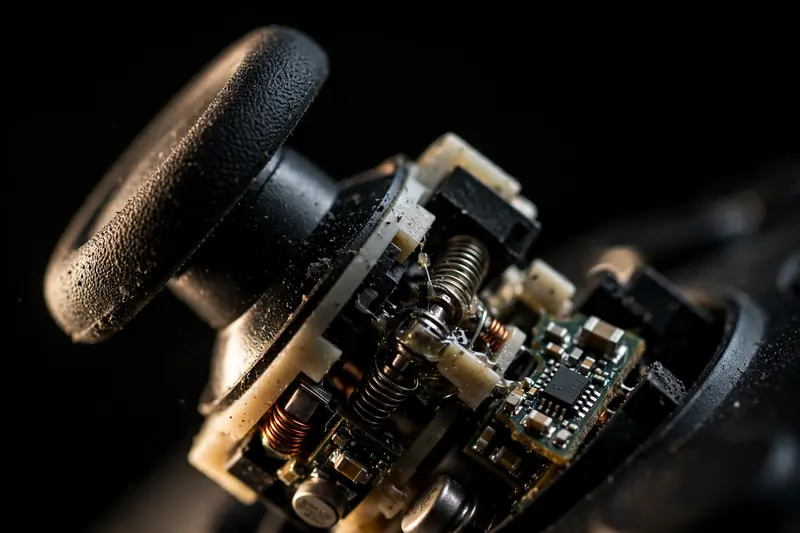
Step 1: Confirm it is really drift
Open our free gamepad tester and connect your controller. Do not touch the sticks and look at the Axes panel.
- A healthy stick rests between -0.05 and 0.05 on both axes.
- If an axis sits at, say, 0.18 or -0.32 without you touching anything, that stick is drifting.
- Wiggle the stick in full circles and let go. If it does not return close to 0.00, the mechanism is worn or dirty.
This test takes ten seconds and tells you exactly which stick and which axis is affected — far more precise than "it feels wrong in-game."
Step 2: Try the deadzone trick
Games ignore tiny stick movements inside a "deadzone." If your drift is small (under ~0.15), increasing the in-game deadzone or stick sensitivity threshold will mask it completely. Our tester has its own deadzone slider so you can see exactly how much filtering a given percentage applies. This is not a true fix, but it makes a mildly drifting controller perfectly playable.
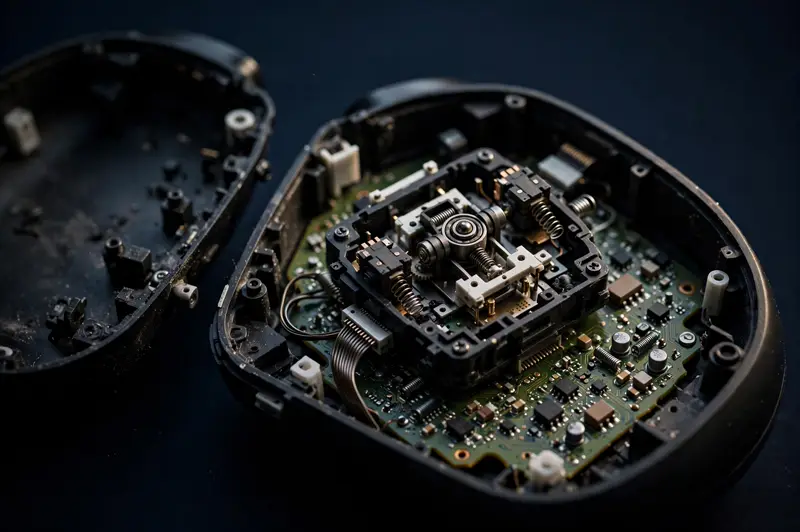
Step 3: Clean the stick mechanism
Dust and debris under the stick cap are a leading cause of drift. With the controller off:
- Lift the stick cap gently and blow compressed air around its base.
- For stubborn grime, use a cotton swab lightly dampened with isopropyl alcohol around the stick well — never spray liquid directly into the controller.
- Let it dry fully, reconnect, and re-test.
Re-test after cleaning: if the resting values are back near zero, you are done.
Step 4: Recalibrate
Some controllers and platforms allow stick recalibration:
- Nintendo Switch: System Settings → Controllers and Sensors → Calibrate Control Sticks.
- Steam: Steam → Settings → Controller → Calibration.
- Xbox accessories app and PlayStation offer deadzone and sensitivity adjustments that can compensate for mild drift.
After recalibrating, check the axes panel again.
Step 5: When to repair or replace
If the stick still will not rest near zero after cleaning and calibration, the potentiometer inside the stick module is physically worn. Your options:
- Replace the stick module — inexpensive parts and many video guides exist, but it requires soldering on most controllers.
- Professional repair — often cheaper than a new controller.
- Replace the controller — if it is old and multiple inputs are failing, a new controller is the sensible choice. Test the new one on our tester before the return window closes.
Preventing drift
Keep controllers in a case away from dust, do not click the sticks (L3/R3) harder than necessary, and avoid eating over them. Small habits add years to a stick's life.