How to Connect a PS5 or Xbox Controller to a PC
Both the PlayStation 5 DualSense and the Xbox Series X|S controllers work on PC over USB and Bluetooth. Here is how to connect each, and how to verify every input works afterwards.
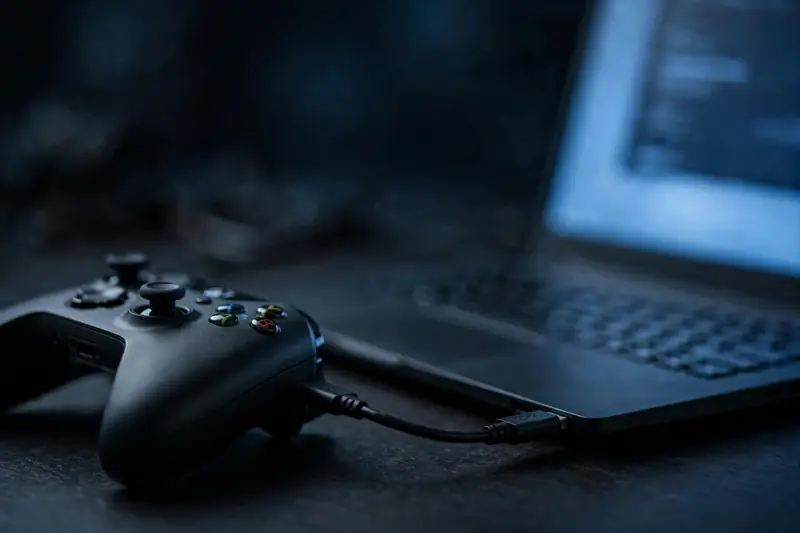
Option 1: USB cable (easiest)
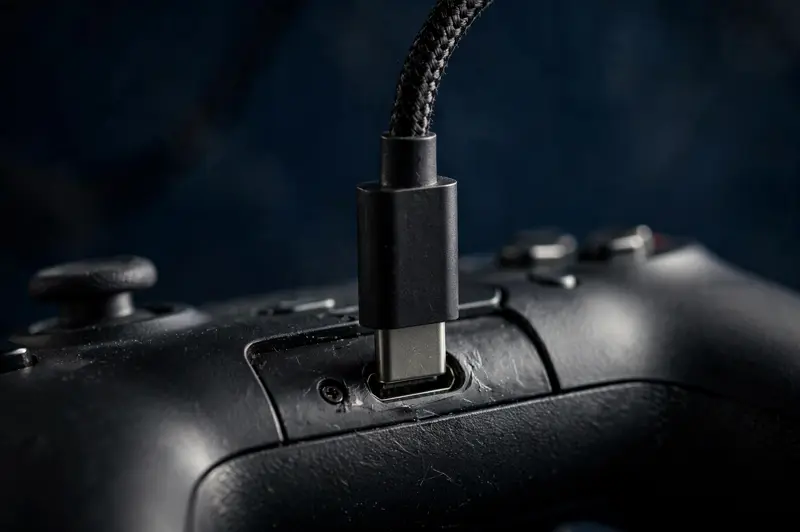
Plug the controller into your PC with a USB cable — USB-C for DualSense and Xbox Series controllers, micro-USB for older Xbox One pads. Windows recognises them automatically with no drivers to install. This is also the most reliable connection for testing, since Bluetooth can occasionally add input lag.
Option 2: Bluetooth
Xbox Series X|S controller:
- Turn the controller on with the Xbox button.
- Hold the Pair button (on the top edge, next to USB-C) until the Xbox button flashes rapidly.
- On your PC, open Settings → Bluetooth & devices → Add device → Bluetooth.
- Select "Xbox Wireless Controller" and wait for the Xbox button to go solid.
PS5 DualSense:
- Make sure the controller is off.
- Hold PS + Create (the small button left of the touchpad) until the light bar flashes.
- On your PC, open Settings → Bluetooth & devices → Add device → Bluetooth.
- Select "DualSense Wireless Controller."
If pairing fails, remove the device from your PC's Bluetooth list, restart both devices, and try again. A low battery is the most common cause of pairing trouble.
Step 3: Verify it works
Connecting is only half the job — now confirm every input actually registers:
- Open our free gamepad tester in Chrome or Edge.
- Press any button on the controller so the browser detects it.
- Press every button, move both sticks in full circles, pull both triggers fully, and try the D-pad.
- Watch the button grid: every input should light up and reach 1.00 at full press.
- Leave the sticks alone and check they rest near 0.00 — if not, see our stick drift guide.
- Press Test Vibration to check the rumble motors.
If a button does not respond in the tester, the problem is with the controller or connection — not the game. See our guide on diagnosing dead buttons.
Tips for the best experience
- Use Chrome or Edge for the fullest controller support, including vibration.
- On Steam, enable PlayStation or Xbox configuration support under Steam → Settings → Controller for per-game remapping.
- Wired USB gives the lowest latency for competitive play; Bluetooth is fine for casual gaming.
- Keep controller firmware updated via the Xbox Accessories app or a PS5 console.