You can test your PS5 DualSense controller online in under a minute — no downloads, no sign-up, no software to install. Connect it to your PC with a USB-C cable or Bluetooth, open the free gamepad tester, and press every button. Each input lights up on screen in real time through your browser's Gamepad API.
How do I test my DualSense online?
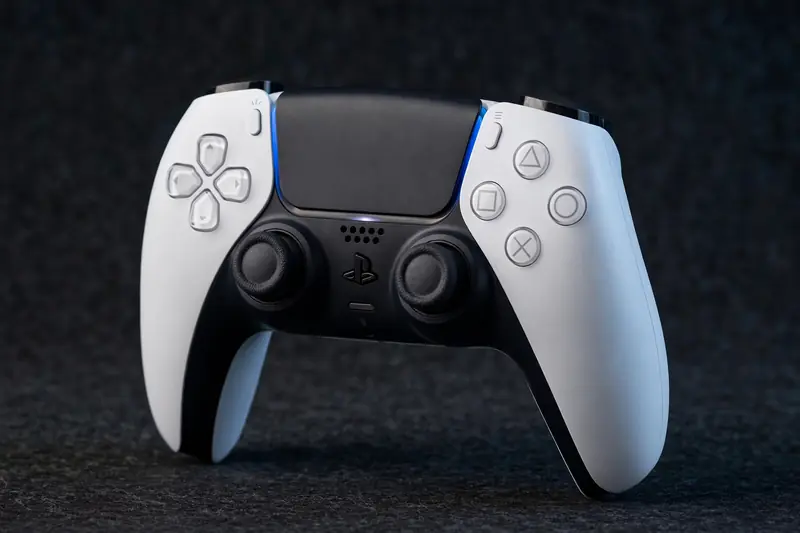
Connect your DualSense to your PC, then open the tester and work through every input: face buttons, D-pad, bumpers, triggers, stick clicks, the touchpad press, and both analog sticks. Each press highlights instantly on screen. A complete check takes about 30 seconds and covers all 17 standard inputs.
Work in a fixed order so nothing gets skipped. Press each face button and D-pad direction once, click both sticks, squeeze both triggers slowly from rest to full pull, then rotate each stick in a slow full circle. Watch for inputs that stay lit after you release them — that means a stuck or worn button contact.
Pay special attention to the sticks. Move each one slowly and watch the on-screen dot: it should track your movement smoothly and return exactly to center when released. If it rests off-center or jitters while untouched, the stick is drifting and needs attention.
The tester follows the standard controller mapping, so Cross, Circle, Square, and Triangle appear in their usual positions regardless of what name Windows gives the device. The touchpad press registers as a button; the mute button below the PS button usually does not register, which is expected and not a fault.
How do I connect DualSense to PC?
Use a USB-C data cable for the most reliable connection, or pair over Bluetooth by holding the PS and Create buttons together until the light bar flashes, then selecting the controller in your PC's Bluetooth settings. The whole process takes under a minute either way.
Wired is the better option for testing: latency is lowest, the connection never drops mid-test, and the controller charges while you work. Just make sure the cable actually carries data — some cheap USB-C cables are charge-only and the controller won't be recognized at all.
Over Bluetooth, Windows usually lists the controller as "Wireless Controller." That generic name is normal. One important step: if you use Steam, close it first or disable Steam Input. Steam remaps the controller behind the scenes and can hide the raw inputs the test needs to see. Our connect PS5 controller to PC guide walks through both wired and wireless setup step by step.
Do adaptive triggers work in the browser test?
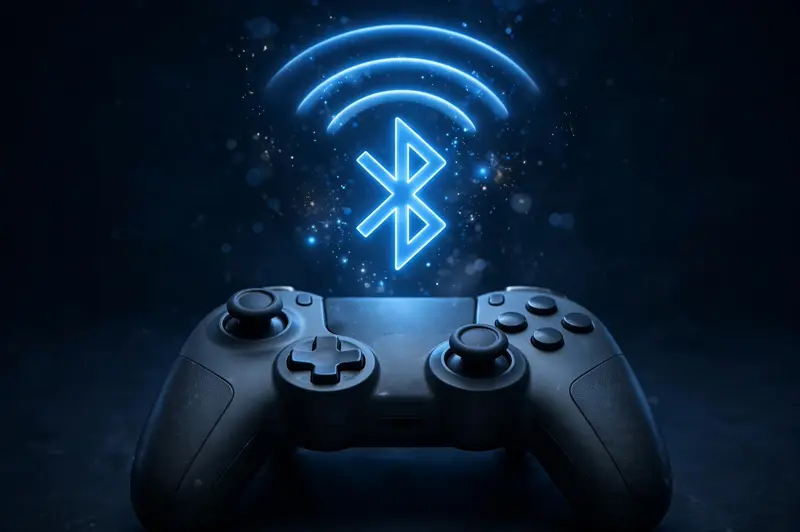
Your L2 and R2 triggers read as normal analog inputs in the browser — you'll see pressure values rise from 0% to 100% as you squeeze. But the test cannot fire the adaptive resistance or haptic effects; the Gamepad API simply doesn't expose Sony's proprietary haptics to websites.
For diagnostics, what you can verify matters more than what you can't. Both triggers should sweep smoothly from 0% to 100% with no sudden jumps, and settle back to exactly 0% when released. If a trigger sticks at 8% at rest or never reaches full pull, the spring mechanism is worn or dirty.
Vibration is a separate check. Run the dedicated vibration test to confirm the rumble motors respond correctly. Basic rumble may work in Chrome, but the fine DualSense haptics you feel in PS5 games can't be triggered from a web page — that's a hard limit of the web standard, not a defect in your controller.
DualSense not detected — what now?
First, rule out the simple causes: use a data-capable USB-C cable or re-pair Bluetooth from scratch, close Steam so Steam Input stops intercepting the controller, and try a different USB port or browser. Chrome and Edge give the most consistent Gamepad API results.
- Confirm the light bar is on — no light means no connection, so fix pairing first.
- Remove the controller from your PC's Bluetooth device list and pair it again fresh.
- Check Windows Device Manager for warning icons on the controller entry.
- Update the controller firmware using a PS5 or the PlayStation PC firmware updater.
- Test in a private/incognito window to rule out extension interference.
If the controller pairs and charges but never appears in the tester across two browsers, the USB port, cable, or the controller's own board is the likely culprit. Borrow another cable before assuming the controller is dead — cables fail far more often than controllers do.
Frequently asked questions
Can I test a DualSense on Mac?
Yes. Chrome on macOS supports the Gamepad API, so the same tester works in your browser. Pair over Bluetooth or USB-C the same way as on Windows. The same limits apply: no adaptive trigger effects or advanced haptics from a web page.
Why does my DualSense show up as "Wireless Controller"?
That's the generic Bluetooth device name Windows assigns to PlayStation controllers. It's completely normal and doesn't affect the test — every input still maps to the correct button in the standard layout.
Does the touchpad swipe work in the test?
No. The physical press of the touchpad registers as a button, but swipe gestures and multi-touch data never reach the browser. The Gamepad API only exposes simple button states, so gesture testing needs desktop software instead.