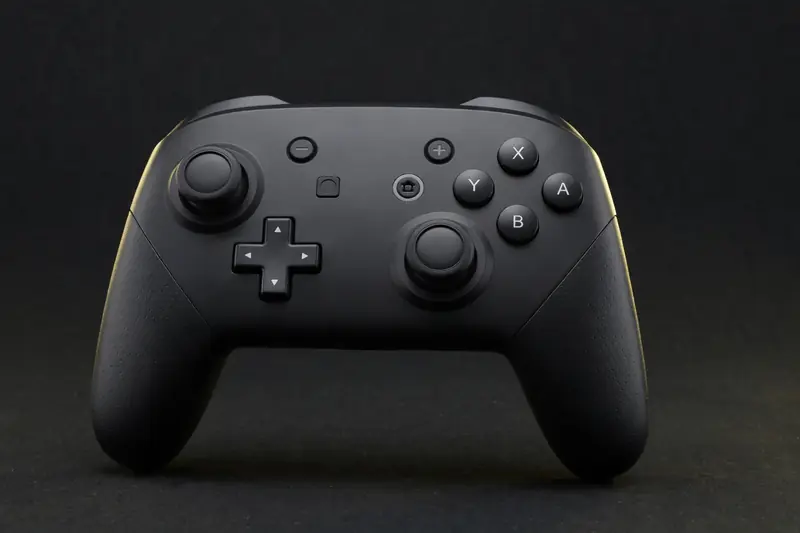
Yes — you can test a Nintendo Switch Pro Controller on your PC in under a minute. Pair it over Bluetooth or plug it in with a data-capable USB-C cable, then open the free gamepad tester. Every button and stick input appears on screen live through the browser's Gamepad API, no downloads required.
How do I test a Switch Pro Controller on PC?
Connect the controller, open the tester, and press every input in order: face buttons, D-pad, shoulder buttons, sticks, and the plus/minus/home buttons. Rotate both sticks in slow circles to check for drift. The full check takes about 30 seconds.
One thing to know before you start: Nintendo's button layout differs from Xbox. A and B (and X and Y) are swapped compared to the Xbox layout most PC tools display. The Gamepad API maps by physical position, so press the button in the on-screen position rather than matching the letter — the input itself is what matters.
Check both sticks carefully. The Pro Controller's sticks are a common drift point after heavy use, especially in games with constant camera control. If the on-screen dot doesn't sit at center when you let go, note the resting value — anything consistently above a few percent means wear.
How do I connect it?
Hold the small sync button on top of the controller until the green player-indicator lights start flashing, then pair it in your PC's Bluetooth settings. For wired play, use a USB-C cable that carries data — charge-only cables won't be recognized.
Windows sees the Pro Controller as a generic gamepad, which is fine for testing. If you use Steam, be aware that Steam Input takes over the controller and remaps it — close Steam or disable its controller support to see the raw inputs in the tester.
For competitive play, wired is worth it: Bluetooth adds measurable latency, and our guide on how to reduce controller input lag explains why a cable is the simplest upgrade for timing-sensitive games.
Why don't analog triggers register?
The Switch Pro Controller has digital shoulder buttons, not analog triggers — ZL and ZR are simple on/off switches with no pressure sensitivity. The tester correctly shows them jumping straight from 0% to 100% with nothing in between. That's the hardware design, not a fault.
Nintendo chose digital shoulders for the Switch lineup, so games built for it never expect partial trigger pulls. If you're used to Xbox or PlayStation controllers, the lack of a pressure gradient can feel odd — but every Pro Controller behaves this way, and the test result confirms yours is working as designed.
This also means trigger "testing" on a Pro Controller is binary: press ZL/ZR and confirm each registers cleanly with no double-firing or missed presses. If a shoulder button needs multiple presses to register, the contact pad underneath is wearing out.
Gyro — can it be tested?
No. The browser's Gamepad API doesn't expose motion sensors, so gyro and accelerometer data never reach the test page. This is a hard limit of the web standard itself — no online tester can read Switch gyro input, regardless of which site you use.
The gyro hardware in your controller is almost certainly fine; it's simply invisible to browsers. If you need gyro for PC gaming, Steam Input is the practical route — it reads the Pro Controller's motion sensors on the desktop and can map gyro to mouse or stick input in supported games.
For everything the browser can see — buttons, sticks, D-pad — the tester gives you a complete picture. Treat gyro as a separate desktop-only check rather than a gap in your controller.
Frequently asked questions
Do the HD rumble motors work in the test?
Partially. The Gamepad API's rumble support is basic and browser-dependent — Chrome may trigger simple vibration, but the fine HD rumble effects from Switch games can't be reproduced from a web page. Run the vibration test: if any rumble fires, the motors work.
Why are the A/B buttons "swapped" in the tester?
They aren't broken — Nintendo and Xbox use mirrored face-button layouts. The tester displays the standard PC (Xbox-style) layout, so the on-screen labels follow position, not Nintendo's letters. Press by position and every input will match.
Can I connect over USB and Bluetooth at the same time?
No — one connection at a time. Plugging in the cable takes over from Bluetooth automatically. Unplug to return to wireless. This doesn't affect testing; just use whichever connection you plan to play with.