You can test any Xbox controller — Series X|S or Xbox One — online in about 30 seconds with no downloads. Connect it via USB cable, the Xbox Wireless Adapter, or Bluetooth, then open the free gamepad tester. Every button press, stick movement, and trigger pull appears on screen instantly through the browser's Gamepad API.
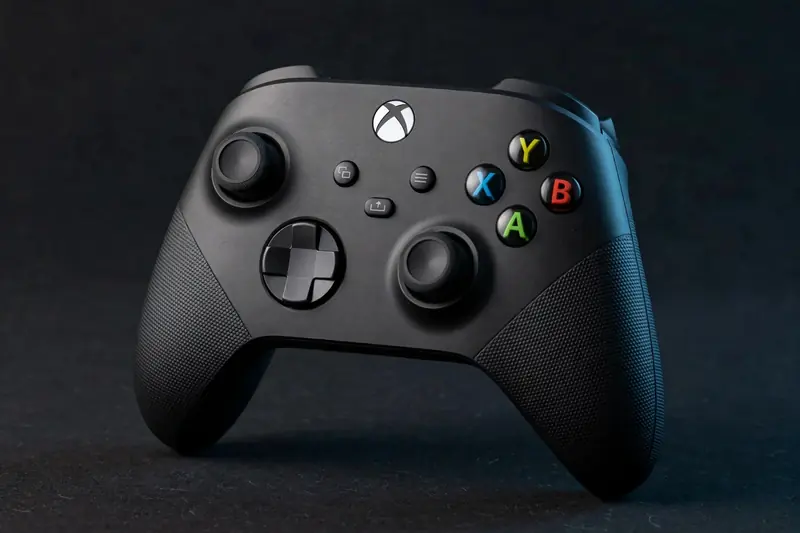
How do I test my Xbox controller?
Connect the controller to your PC, open the tester, and press every input in order: face buttons, D-pad, bumpers, triggers, stick clicks, and the Xbox button. Then rotate both sticks in slow circles. Each input highlights live, and the full check takes under a minute.
Xbox controllers use the XInput layout, which is the reference standard most PC games expect — so the on-screen mapping matches your controller exactly. Focus on the two most common failure points: sticks that don't return to center (drift) and triggers that don't reach a smooth 100% pull.
Test the bumpers firmly several times. LB and RB use microswitches that wear with heavy use, and a failing bumper often registers only on hard presses. If an input works sometimes but not others, it's almost always hardware wear, not a software problem.
How do I connect it to PC?
Plug in with any USB cable for the simplest, most reliable connection. For wireless, use the official Xbox Wireless Adapter, or hold the Pair button on top of the controller until the Xbox button flashes and connect through your PC's Bluetooth settings.
USB is the best choice for testing: zero pairing hassle, lowest latency, and the controller charges while connected. The Xbox Wireless Adapter is the next best option — it uses the same proprietary wireless protocol as the console, so latency stays low and all features work.
Bluetooth works but has two caveats. First, the original 2013 Xbox One controller has no Bluetooth at all — only the One S, One X, and Series X|S models do. Second, on some Bluetooth connections Windows reports the triggers as digital on/off instead of analog. If that happens, switch to USB or the Wireless Adapter. Our connect Xbox controller to PC guide covers all three methods in detail.
Why do Elite paddles not show up?
Elite Series paddles never appear as separate buttons because they mirror existing face buttons at the firmware level — your PC only ever sees the button each paddle is mapped to. The browser's Gamepad API can only read what the operating system reports, so unmapped paddles are invisible by design.
This is not a tester limitation; no software can see paddles as independent inputs. To verify your paddles work, open the Xbox Accessories app and map each paddle to a different, unused button — then press them in the tester and confirm each mapped button lights up. If it does, the paddle hardware is fine.
The same principle applies to the Elite's adjustable trigger locks and stick tension: the tester reads the resulting input values, not the physical settings. Short trigger locks, for example, will show a shorter travel to 100% — which is exactly what you'd expect.
Calibration and deadzone on Xbox
Xbox controllers rarely need manual calibration on PC — Windows and most games apply a small default deadzone that hides minor stick noise automatically. If a stick visibly drifts in the tester, start with our calibrate your controller guide before assuming the hardware is finished.
Understand what deadzone does first: it's a small ignore-zone around the stick's center position, typically 5–15%, that filters out tiny unintended movements. A healthy stick returns to near-zero at rest; if yours sits at 10% or more without touch, no deadzone setting will truly fix it — that's mechanical wear.
For persistent drift, recalibrate through Windows' game controller settings or Steam's calibration tool, then re-test. If the resting value won't settle near zero after calibration, the potentiometer inside the stick module is worn and the module needs replacing.
Also re-test after any firmware update applied through the Xbox Accessories app. Updates occasionally change stick response curves, and a quick 30-second check confirms everything still reads correctly before you play.
Frequently asked questions
Does the Xbox Wireless Adapter work with the browser test?
Yes. Once Windows recognizes the controller through the adapter, the Gamepad API reads it exactly like a USB-connected controller — full analog triggers, sticks, and rumble. No extra setup is needed beyond pairing the controller to the adapter.
Can I test the headset jack or audio?
No. Audio input and output aren't exposed through the Gamepad API, so no browser-based tester can check the 3.5mm jack. Test headsets through Windows sound settings or the Xbox Accessories app instead.
Why do my triggers only show 0% or 100% on Bluetooth?
Some Bluetooth stacks report Xbox triggers as digital instead of analog, so you lose the pressure gradient. This is a connection quirk, not a controller fault — switching to USB or the Xbox Wireless Adapter restores the full 0–100% analog range.